
Your pharmacy.Ready in minutes.
Download Optima, set it up in a few steps and start managing your sales, stock, prescriptions and more. Free to try for 7 days. A free account, no card required.
Download free trialGet it on my computerFor Windows 10 & 11, 64-bitVersion 1.9.0Released 1 November 2026
No Windows computer, or rather not install? Rent Optima Online and use it in your computer’s browser: 14 days free, then from KES 1,500 a month.
- Free 7-day trialFree account, no card
- Your data stays localWorks offline
- Same licenceafter you buy
- Full featuresduring trial
- 1. DownloadGet the installer (online or offline)
- 2. Install & set upAdd your pharmacy in a guided setup
- 3. Start usingBegin selling, managing stock and more
- See the full setup guide
Installers and setup, for the computer
The installers, safety checks and install steps are here for the Windows computer at your counter. Open this page there, or read them now.
One product. Two ways to get it onto the counter.
Both downloads install exactly the same Optima. Most pharmacies should use the standard installer. The offline installer is for a computer with no internet, or an older one that has not been updated in a long time.
Standard installer
The right choice for most pharmacies. Small and quick, for a computer that has internet while you install.
- Start here unless you know the machine has no connection
- Usually needs nothing extra - Windows 11 already has it
- The app itself never needs internet once installed
28.2 MB · free account, no card, no payment to start the trial
Optima-Setup-1.9.0-online.exe
SHA-256
969e7fce835dfdbb2edd0bd6089ca8c1661d9a29bd2f01b8c9beeb05a21ecb55Full offline installer
For a computer with no internet, or an older one. Everything is inside the file: download it anywhere, then carry it over on a USB flash drive.
- Installs on a machine that has never touched a network
- Larger because Microsoft's runtime carries every processor type
- Download once and keep it for reinstalling on your licensed computer
236 MB · free account, no card, no payment to start the trial
Optima-Setup-1.9.0-offline.exe
SHA-256
72828924a1f921e0fc19b59695e501f2f6bd96b25fb3b9efb2957f4495cd6afcWhich one do I need?
Find the line that sounds like your pharmacy computer.
- Standard · 28.2 MB
This computer has internet right now
Wi-Fi, a network cable or a phone hotspot is enough. This covers most pharmacies.
- Offline · 236 MB
There is no internet on the pharmacy computer
Download the offline installer on any other computer, even at a cyber cafe, copy it to a USB flash drive, and install from that.
- Offline · 236 MB
An older computer, or Windows 10 that has not been updated in a long time
It may be missing the Microsoft part Optima needs. The offline installer brings that part with it.
- Standard · 28.2 MB
Not sure
Start with the standard installer. If it cannot finish, download the offline one and run that instead.
Why are there two?
Optima needs one free Microsoft part, called WebView2, to show its screens. Whether your computer already has it decides which download suits you.
- Standard installer - small
- Leaves the Microsoft part out to stay small. Windows 11 and most updated Windows 10 computers already have it. If yours does not, the installer fetches it while installing, which needs the internet for about a minute.
- Offline installer - larger
- Carries the Microsoft part inside the file, which is the only reason it is bigger. It needs nothing from the internet, so it suits a computer with no connection or an old copy of Windows 10. Copy it to a USB flash drive and install from there.
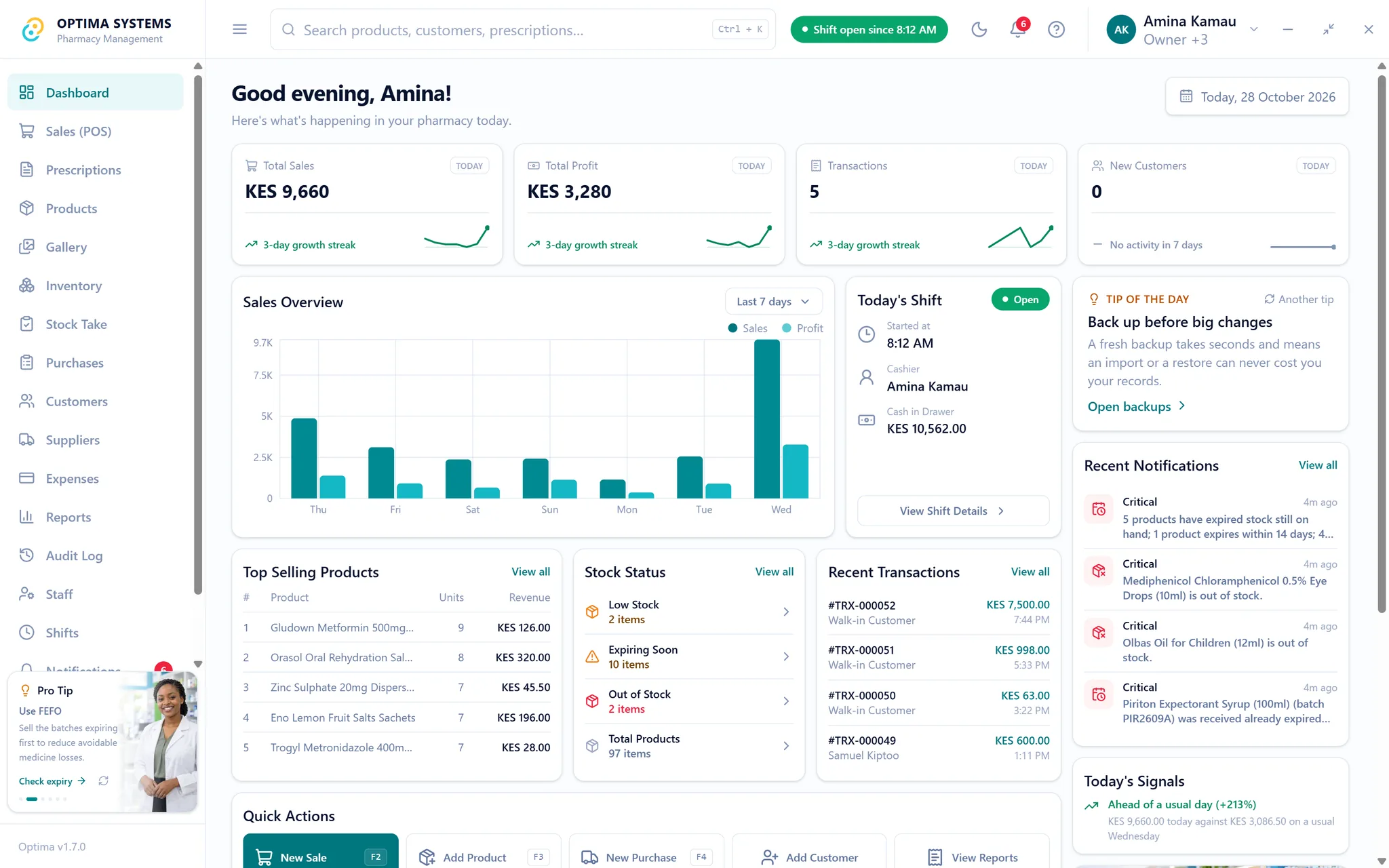
After installing, both are the same Optima: the till, your stock, batches and expiry, purchasing, shifts, expenses, reports, backups and extra terminals. Neither needs the internet to run.
What you are actually downloading
A real Windows desktop application, not a website in a wrapper. This is what opens on the counter once it is installed.
Point of sale
Cash and M-Pesa on the same sale, split between them if you need to. Barcode scanner and receipt printer work if you have them, and are not required if you do not.
Stock, batch by batch
Every batch carries its own expiry date, and dispensing takes the nearest-dated packet first, so stock leaves the shelf in the order that stops it expiring on you.
Purchasing and suppliers
Orders, deliveries and what each supplier actually costs you, recorded as you receive the goods rather than reconstructed at month end.
Shifts that reconcile
Open a till, close it, and see the cash you should have against the cash you do have, per member of staff, with the difference named.
What this installer does not do
Worth knowing before you put anything on a pharmacy computer. These are easy for us to state plainly because they follow from how the software is built, not from a promise about our intentions.
The full privacy notice and licence agreement say the same thing at length, and in writing.
A free account, then no sign-in to trade
You create a free Optima account to download the installer, so your downloads, trial and licence stay together and we can help if something goes wrong. No payment is needed to start the 7-day trial. Once installed, daily work never signs in to anything: your records live in a file on your own computer, not on a server of ours.
Your business data stays put
The app sends us no sales, no stock and no patient details. Not anonymised, not aggregated. None. It does ask us whether a newer version exists, and reports whether one installed, using scrambled identifiers that say nothing about your pharmacy.
No lock-in
Your data is yours and exportable, and stays readable if your trial ends or a licence is ever refunded.
No adverts, ever
Nobody is buying your pharmacy's data, because we are not selling it and never collect it in the first place.
See an “Unknown publisher” warning?
Some Windows computers may show Microsoft Defender SmartScreen before installing Optima. This is normal. Follow the steps on the right to continue safely.
- Checked before releaseChecksum published, scanned on VirusTotal
- We guide youJust two simple steps
- Still stuck?Contact our support
Follow these two steps
These screens show what you’ll see on Windows and how to continue.
1. Click “More info”
When this screen appears, click the More info link at the bottom.
Windows protected your PC
Microsoft Defender SmartScreen prevented an unrecognised app from starting. Running this app might put your PC at risk.
More info2. Check the app name, then run
The app name should show as Optima setup. Click Run anyway to continue.
Windows protected your PC
Microsoft Defender SmartScreen prevented an unrecognised app from starting. Running this app might put your PC at risk.
- App:
- Optima-Setup-1.9.0-online.exe
- Publisher:
- Unknown publisher
Don’t runRun anyway
Still see the warning even after these steps?It’s usually safe to continue. If you’re unsure, contact our support team and we’ll help you.
Check the file is the one we built
Worth doing if the installer reached you on a USB stick that has been around, or from anywhere other than this page. Paste this into PowerShell and compare the result with the checksum printed on the download above.
Get-FileHash "$HOME\Downloads\Optima-Setup-1.9.0-online.exe" -Algorithm SHA256 | Format-ListIf the two strings match, character for character, the file is intact. If they do not, delete it and download again - and tell us.
What it needs to run
Optima is built for the computer a pharmacy already owns, not one it has to go out and buy.
Windows 10 or 11
64-bit. Windows 8 and earlier are not supported.
Any computer from the last decade
4 GB of memory is comfortable. It is a small app.
About 400 MB free
The app, plus room for years of records and local backups.
No internet needed
Required only to download. After that it runs entirely offline.
Installing, start to finish
Ten minutes, most of which is typing in your pharmacy’s details.
Stuck? Message us on WhatsApp- 1
Run the installer
Double-click the file you downloaded. Windows will ask for permission to install for everyone on this computer - say yes. That is what lets a second member of staff sign in to Windows and still see the same pharmacy.
- 2
Get past the red screen
You will almost certainly see Microsoft Defender SmartScreen. It is expected, and the section above shows you both screens exactly as they appear, with what to click on each.
- 3
Let it install
It takes under a minute. Optima installs to Program Files and puts your pharmacy's data in a shared folder, so it survives updates and Windows accounts.
- 4
Set up your pharmacy
On first launch a wizard asks for your pharmacy details, creates the owner account, adds your staff, and optionally imports your stock from a spreadsheet.
- 5
Make a sale
Open a shift, ring up an item, take cash or M-Pesa. If that works, everything else will.
Put it to work for 7 days.
Not on a demo dataset. Put your real stock in, run your real till, and decide with a week of your own numbers in front of you.
Questions first? +254 117 910 394 on WhatsApp, or support@optimasystems.co.ke.